
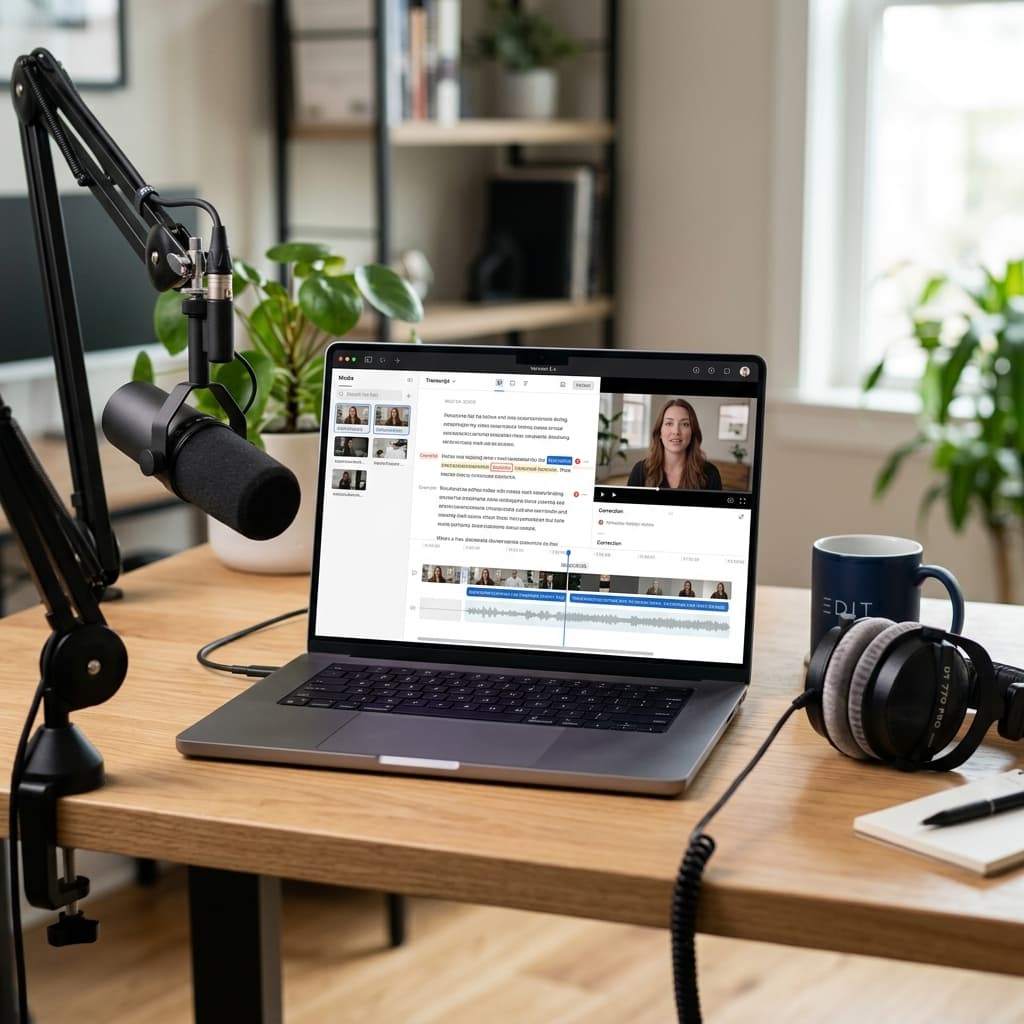
Video editing used to be a daunting task reserved for professionals who had mastered complex timelines and keyframes. But then came Descript, and everything changed.
Imagine editing a video as easily as you edit a Google Doc. Instead of squinting at waveforms and cutting frames, you simply highlight text in a transcript and hit backspace.
I’ve been using Descript for over five years. I started as a complete novice, and today, I use it for everything from long-form YouTube tutorials to quick social media clips and even high-fidelity podcasts. In this tutorial, I'll walk you through exactly how to master Descript, leveraging its latest AI features to supercharge your workflow.
What is Descript?
Descript is an AI-powered video and audio editor that treats your media like a text document. When you import footage, Descript automatically transcribes it. From there, your transcript becomes your interface: delete a sentence in the text, and it’s instantly cut from the video.
This "Doc-style" editing is a game-changer for beginners. You don't need to learn the complex shortcut keys of Premiere Pro or DaVinci Resolve. If you can edit a document, you can edit a video in Descript.
What Can You Use Descript For?
While it's famous for podcasting, Descript has evolved into a powerhouse for all types of creators:
- Long-form Video Editing: Perfect for YouTube, tutorials, and webinars.
- Social Media Clips: Quickly turn a 30-minute video into five viral-ready TikToks.
- Accessibility: Automatically add high-quality, animated captions.
- Collaboration: Share projects with editors or clients for instant feedback.
- AI Content Creation: Generate videos from scratch using AI avatars and voices.
How to Use Descript: Your Step-by-Step Tutorial
Ready to dive in? Follow these steps to create your first masterpiece.
1. Set Up Your Account
Descript offers a generous free tier that lets you test out almost every feature (though it includes a watermark).
- Download: While you can use the browser version, the desktop app (Mac/Windows) is significantly faster and more stable for large projects.
- Login: Sign up and you'll be greeted by a clean, modern dashboard.
2. Import and Transcribe Your Footage
Click New Project and give it a name. You have three main ways to get started:
- Upload: Drag and drop your prerecorded files.
- Record: Use Descript’s built-in recorder for your webcam or screen (ideal for tutorials).
- Import: Pull files directly from Zoom or cloud storage.
Once uploaded, Descript will ask for the number of speakers. Give them names—this makes editing multi-person interviews a breeze.
3. The Magic of Text-Based Editing
Once the transcription is ready, take a look at the left-hand panel. This is your "script."
- Cutting: Highlight a word, phrase, or paragraph and press delete. The video will snap together perfectly.
- Correcting: If the AI mishears a word, don't worry. Hover over the word, press 'C', and type the correction. This updates the transcript without changing the audio.
Ready to Edit Videos Like a Pro?
Try Descript for free and experience the magic of text-based video editing. No complex timelines required.
Try Descript for Free4. Remove Filler Words (The "Um" Killer)
This is arguably Descript's best feature. It identifies every "um," "ah," "you know," and "like" in your recording.
- Click on Underlord (the AI assistant) in the right-side menu.
- Select Remove filler words.
- You can choose to "Delete" them or "Ignore" them. Click Apply to all, and just like that, you sound 100% more professional.
5. Add Professional Captions
Captions are no longer optional—most people watch mobile videos with the sound off.
- Go to the Elements tab and select Captions.
- Choose a style (Dynamic, Karaoke, or Classic).
- Customize the font, colors, and animations to match your brand.
6. Enhance with Music and B-Roll
A talking head video can get boring. Descript makes it easy to spice things up:
- Music: Choose from thousands of royalty-free tracks directly in the app.
- B-Roll: Use the Media tab to search for stock footage that matches your script.
- Overlays: Add text, shapes, or progress bars to keep viewers engaged.
Advanced AI Features You'll Love
Underlord: Your AI Assistant
Underlord is Descript’s built-in AI copilot. You can talk to it like ChatGPT. Ask it to:
- "Find the best 30-second clips for Instagram."
- "Write a YouTube description based on this video."
- "Add chapter markers to the transcript."
Studio Sound
Recorded in a noisy room? Studio Sound uses AI to isolate your voice and remove background hum, echo, and static. It makes a $20 headset sound like a $500 studio microphone.
AI Voice Cloning (Overdub)
If you realize you said the wrong date or name after you've finished recording, don't re-record the whole thing. Type the correct word into the transcript, and Descript will use your AI Voice Clone to generate the audio in your exact voice.
Descript Pricing: Which Plan is Right for You?
| Plan | Price | Best For |
|---|---|---|
| Free | $0 | Testing the waters (with watermark) |
| Hobbyist | $16/mo | Beginners & casual creators |
| Creator | $24/mo | Professional YouTubers & Podcasters |
| Business | $50/mo | Agencies & Marketing Teams |
Is Descript Worth It?
As someone who used to spend hours manually cutting audio, I can say with certainty: Yes.
Descript doesn't just edit videos; it saves you time. It allows you to focus on the storytelling rather than the technical hurdles. Whether you’re building a brand or just starting your first YouTube channel, Descript is the most accessible tool on the market today.
Descript FAQs
Can I use Descript for free?
Yes! Descript has a free plan that includes 1 hour of transcription per month. It's perfect for learning the tool before you upgrade.
Does Descript work on Mac and Windows?
Yes, Descript has dedicated apps for both MacOS and Windows, as well as a powerful web-based editor.
Is Descript good for podcasts?
It’s arguably the best tool for podcasts. Features like multitrack editing and Studio Sound are specifically designed for high-quality audio production.
Start Editing with Descript